
How to Fix Poor Interaction to Next Paint (INP) on Your Website
Have you ever performed a test on your website and considered, It is fast to load — so what is the reason that it is slow indeed? You click a button, fill a form, or expand a section — and instead of getting an instant reply, you experience a delay.
That delay isn’t a loading issue — it’s a responsiveness issue, and Google now measures it using a metric called Interaction to Next Paint (INP). INP tracks how quickly your site responds after someone interacts with it.
INP is part of Core Web Vitals, and a sluggish response is not only annoying for visitors but also a reason for lower search rankings, decreased conversions, and lesser engagement. In this article, we will explain the significance of INP, its impact on SEO, how to measure it accurately, and the precise methods to enhance responsiveness all over your website.
What Is Interaction to Next Paint (INP)?
Interaction to Next Paint (INP) is a Core Web Vital metric that measures how long it takes for a visible response to appear on the screen after a user interacts with your website. This includes common actions such as:
- Clicking a button
- Typing in a form field
- Opening or expanding a menu
- Navigating between UI elements
INP reflects real responsiveness, not just page load speed.
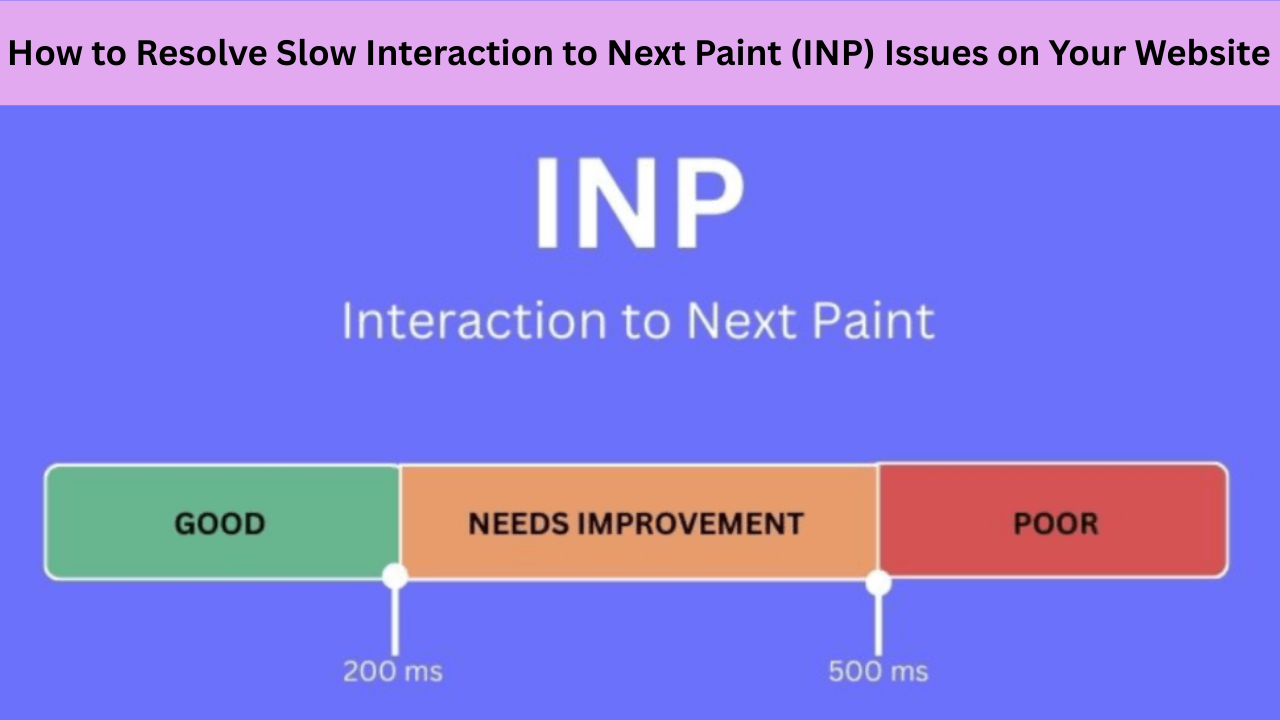
Ideal INP thresholds:
| Score | INP Time | Meaning |
|---|---|---|
| Good | ≤ 200ms | Fast, responsive |
| Needs Improvement | 200–500ms | Noticeable delay |
| Poor | ≥ 500ms | Feels broken |
Google previously used FID (First Input Delay), but FID measured only the delay before the browser starts processing — not how long it takes to update the UI. INP fixes that gap.
Why Interaction to Next Paint is Important?
Your website may load fast, but if users tap a button and nothing happens instantly, the experience still feels slow. Today’s users expect instant visual feedback — mainly on mobile. Delays of 300-400 ms are perceived as lag, killing the feeling of being responsive.
A fast INP makes the interface feel natural and real time. Every action — click, tap, or input — should trigger an instant visual response. Users perceive the website as a friendly environment and feel confident when such a situation occurs.
How Good INP Improves Experience
- Higher Engagement: When interactions are smooth, users explore more and interact more frequently.
- Increased Trust: Instant feedback reassures users that the system received their action.
- Better Conversions: Fast input response reduces frustration during forms, logins, and checkout.
- Smoother Navigation: With no delays, users move through the site quickly and comfortably.
How INP Impacts SEO
Interaction to Next Paint affects more than just user experience — it influences how Google evaluates and ranks your site. Since INP is now part of Core Web Vitals, pages with slow responsiveness are considered less user friendly, especially on mobile.
Google uses real user field data (CrUX) rather than just lab tests, which means your actual visitors determine your score. If users experience delays, your ranking power and page quality score decline.
Negative Impact of Poor INP
- Lower Rankings : Pages with slow INP often score poorly in Core Web Vitals, signaling Google that the site is not optimized. This can push your rankings down against competitors with better performance.
- Poor Mobile Experience Signals : Mobile first indexing means responsiveness matters more on smartphones. If users struggle to tap, scroll, or interact smoothly, Google sees the site as lower quality.
- Higher Bounce Rate : Even a small delay — around 300–400ms — can make interactions feel laggy. Users may leave quickly if buttons don’t respond immediately.
- Low Session Duration : Frustration from slow interactions reduces browsing time, page exploration, and engagement depth.
Positive Impact of Good INP
- Better Core Web Vital Scores : Enhanced INP improves your complete user experience metrics which in turn helps Google to trust your website’s performance and stability.
- Higher Engagement and Conversions : Smoother actions due to quicker response times result in more form submissions, purchases, clicks, and overall engagement.
- Improved Behavioral Signals : The users stay longer on your site, visit more pages, and are more involved thus the signals like average time on page, session depth, and return visits get improved.
- Better Ranking Strength for Competitive Keywords : When two pages have similar content and authority, user experience metrics like INP can become the ranking tiebreaker.
For high-traffic websites, even small delays compound into large-scale SEO and conversion losses.
How to Measure INP Accurately
To fix INP, you must first measure it properly. Use multiple tools to diagnose real-world delays.
Best Tools
| Tool | Purpose |
|---|---|
| Google PageSpeed Insights | Field + lab INP score |
| Search Console → Core Web Vitals | Real user performance reporting |
| Lighthouse (Chrome) | Controlled testing |
| Chrome DevTools Performance Panel | Inspect slow scripts and interactions |
| Web Vitals Chrome Extension | Real-time browser monitoring |
What to Look For
- Which interactions have long delays
- Slow event handlers
- Long tasks blocking the main thread
- Device-specific bottlenecks (especially mobile JS-heavy sites)
Measuring correctly avoids fixing the wrong things.
Main Causes of Poor INP
Sluggish INP is mostly caused by the bottlenecks on the front end that take time to react to the user inputs like tap, click, or typing. The majority of such hindrances are related to heavy scripts, unnecessary layers of UI, or poor rendering behavior.
Common Contributors to Slow INP
Render Blocking CSS and Style Sheets
CSS that loads late or blocks rendering can slow responsiveness during initial interaction. Framework-heavy styles, unused CSS, or layout recalculations add extra delay to visual updates.
Large or Blocking JavaScript
Heavy JavaScript execution delays the browser’s ability to respond to user actions. When the main thread is busy processing scripts, clicks and taps get queued instead of triggering instantly.
Heavy UI Frameworks Not Optimized
Frameworks like React, Angular, or Vue can introduce extra rendering layers if poorly configured. Without code splitting, lazy loading, or memoization, user interactions create unnecessary re-renders and lag.
Third Party Scripts (Analytics, Chats, Ads, Trackers)
Tools like heatmaps, social widgets, or advertising scripts add extra event listeners and network calls. These can block input processing and delay visual updates after interactions.
Complex DOM Structure or Frequent Forced Reflows
A large or deeply nested DOM makes rendering more CPU heavy. Layout shifts, recalculations, and style changes triggered by interactions increase the delay before the screen updates.
Unoptimized or Excessive Event Listeners
Too many click, input, or scroll handlers — especially on global targets like document or window — create overhead. If handlers run expensive logic synchronously, the UI feels laggy.
How to Fix and Improve INP
Enhancing INP means minimizing the time between user actions and visual feedback. The target is straightforward: when a person clicks, writes, or taps, the UI must respond right away. Below we present the most efficient solutions that are based on the common causes of performance bottlenecks.
1. Break Up Long JavaScript Tasks
Long JavaScript execution occupies the main thread, thus the browser cannot respond to the user input. If a click on the button occurs during script execution, the interaction is on hold until the task is completed which results in a perceivable delay.
Fix using:
- Code Splitting : Break your bundle into smaller chunks so only essential code loads first.
- Dynamic Imports : Load scripts only when the user reaches a relevant page or triggers a specific UI action.
- Route Level Bundling : Each page or route should only contain logic it needs — not entire app code.
- Prioritizing Critical Scripts Only : Scripts required for layout and interaction should load early; everything else should wait.
2. Optimize Event Handlers
Slow or heavy event logic increases latency between a click and the visual update. Sometimes the UI waits for calculations before showing a result.
Best practices:
- Debouncing and Throttling : Limit how often input and scroll handlers fire — especially useful for search fields and real-time filtering.
- Passive Event Listeners : Use
passive: trueto prevent blocking scrolling and gestures during touch events. - Avoid Heavy Synchronous Logic in Event Handlers : UI feedback should happen immediately, and data processing should run afterward.
3. Offload Heavy Compute Tasks
If an interaction triggers expensive work (sorting, filtering, encryption, parsing), it should not block rendering.
Use:
- Web Workers : Move heavy tasks to background threads so the UI remains responsive.
- Deferred & Background Processing : Run non essential work slightly after the visual update or after
requestIdleCallback().
4. Reduce or Optimize Third-Party Scripts
External scripts are one of the biggest contributors to poor responsiveness. Heatmaps, ad networks, A/B testing scripts, and chat widgets often attach multiple event listeners and block execution.
Solutions:
- Defer Non-Critical Scripts
Load them after initial user interaction or after the page becomes idle. - Lazy-Load Trackers and Widgets
A chat widget does not need to load before a user scrolls or clicks. - Use Tag Manager to Consolidate Tracking
Fewer requests mean fewer blocking tasks. - Remove Unused Tools
Every script should exist only if it brings measurable value.
5. Improve Framework Rendering
Framework heavy apps often suffer from excessive hydration or unnecessary re-renders.
Optimizing based on framework:
React
React.lazy+Suspensefor component level lazy loading- Memoization (
React.memo,useCallback,useMemo) to prevent unnecessary re-renders - Server components and partial hydration for lighter initial overhead
Vue
- Lazy hydration for non-critical components
- Minimize watchers or reactive dependencies
- Use computed values efficiently to prevent reactivity overload
6. Reduce DOM Size and Avoid Layout Thrashing
A large DOM makes interactions more expensive because the browser must recalculate layout and repaint elements more often.
Fix using:
- Smaller Component Trees : Avoid deeply nested wrappers and unnecessary markup.
- Avoid Top/Left for Animation : Use CSS
transformandopacityto prevent layout recalculation. - Batch DOM Reads and Writes : Use
requestAnimationFrame()or batching logic to prevent mid-task layout thrashing.
7. Optimize CSS Rendering
CSS affects rendering time more than most developers realize. Bloated CSS files or blocking style logic delays painting and responsive behavior.
Fix with:
- Minified CSS : Smaller stylesheets reduce parsing and execution time.
- Inline Critical CSS : Render above the fold layout instantly; load the rest asynchronously.
- Remove Unused Framework CSS : Avoid shipping full Bootstrap/Tailwind builds if only 5% of it is used.
- Use Component or Utility Driven CSS : Reduces the scale and complexity of repainting operations.
Continuous Monitoring
After improvements, keep monitoring using:
- Search Console Core Web Vitals
- PageSpeed Insights RUM data
- CrUX API logging
- WebPageTest and Lighthouse regression tests
FAQs
How fast should INP be?
Under 200ms for a responsive and natural feel.
Can caching alone improve INP?
No — caching helps loading speed, not interaction responsiveness.
Does removing plugins or scripts help?
Yes, especially heavy or redundant third-party scripts.
Does INP matter if my LCP and CLS are good?
Yes — INP affects interactivity, not loading or stability. All Core Web Vitals matter collectively.
Final Takeaway
A loading website that is fast isn’t sufficient since the interface should respond immediately when users interact. Correcting INP increases user satisfaction, conversion rates, and search visibility. By reducing JavaScript overhead, optimizing event handlers, managing thirdparty scripts, and improving framework rendering, your site becomes significantly faster and more responsive.
Improving INP means users get the trust in the interface and hence continue their interaction which results in better engagement, stronger retention, and higher rankings.